
If you’re using Seedance 2.0 and facing problems like videos not generating, slow rendering, or export errors, you’re not alone. Many creators are struggling with these issues, especially as AI video tools are becoming more popular. Sometimes the tool gets stuck, sometimes it shows errors, and sometimes the output is just not usable.
The truth is simple: Seedance is powerful, but it’s not perfect. Most problems happen because of system limits, heavy inputs, or small mistakes in prompts. The good news? Almost every Seedance problem has a simple fix. If you know what to do. Let’s start with the basics.
If you want to learn the basics and get a complete guide to the Seedance tool, check out this detailed tutorial: Seedance 2.0 Complete Guide
Before troubleshooting deeper issues, try the following quick fixes, These simple adjustments solve many common Seedance issues immediately.
- Refresh the page and restart the project
- Shorten your prompt
- Reduce video duration to 3–5 seconds
- Export using MP4 format
- Remove extra effects or transitions
- Clear browser cache
- Switch browsers if the tool freezes
- Retry during off-peak hours
- Avoid running multiple generations at once
Understanding the cause of the problem makes fixing it much easier.
AI Tool Limitations and System Constraints
Seedance runs on cloud servers, and these servers have limits. When too many people are using the tool at the same time:
- The system becomes slow
- Requests get delayed
- Errors start appearing
Prompt Mistakes That Cause Errors
One of the biggest reasons for failure is bad prompts. If the AI cannot clearly understand your request, it may fail to generate results. Common mistakes include:
- Writing very long prompts
- Giving confusing instructions
- Using restricted or sensitive content
Heavy Inputs and Processing Issues
Seedance struggles when you overload it. The heavier the input, the higher the chance of failure. Problems happen when you:
- Add too many elements in one scene
- Use large files
- Combine video, audio, and effects together
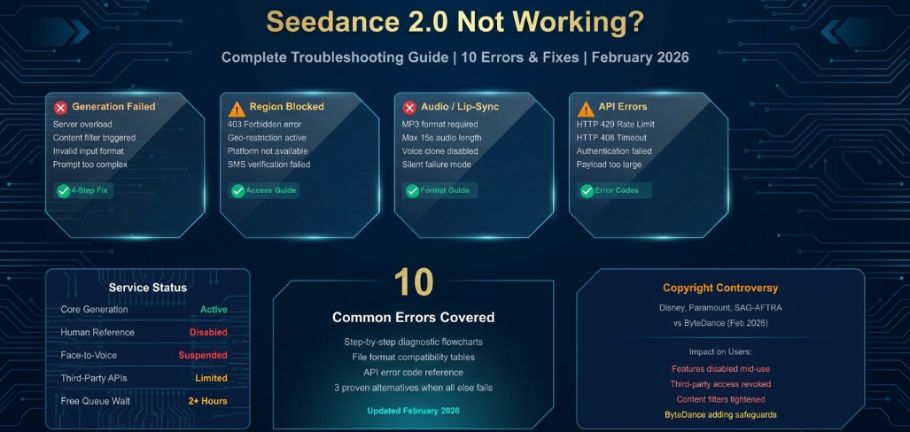
These are the most common errors users face while using Seedance. Understanding them will help you fix issues faster and avoid wasting time.
Error 1: “Generation Failed”
This means the system started your request, but could not finish it.
Why does it happen:
- The prompt is too complex or too long
- Content is restricted by system rules
- Server timeout during processing
- Temporary system or API issue
How to fix it:
- Shorten your prompt by removing extra details
- Avoid brand names or sensitive content
- Reduce video duration (try 3–5 seconds)
- Wait a few minutes and retry
Pro Tip: If the same prompt fails multiple times, rewrite it completely instead of retrying.
Error 2: Stuck on Processing
Your video keeps loading but never finishes.
Why does it happen:
- Too many users on the system (server overload)
- Complex or heavy request
- System lost your processing task
How to fix it:
- Cancel and restart after 3–5 minutes
- Use a shorter and simpler prompt
- Clear the browser cache or switch browsers
- Try again at a different time
- If it takes too long, don’t wait, restart immediately.
Error 3: “Model Missing” or “Model Not Found”
The system cannot find the required model to generate your video.
Why does it happen:
- System update or temporary issue
- Wrong configuration or tool error
- Access or permission problem
How to fix it:
- Refresh the tool and try again
- Make sure you are using the correct setup
- Wait and retry later
- Contact support if the issue continues
Error 4: “Rate Limit Exceeded”
You are sending too many requests in a short time.
Why does it happen:
- Multiple generations at once
- Too many retries quickly
- Shared account usage
How to fix it:
- Wait for a few minutes before retrying
- Avoid running multiple tasks together
- Space out your requests
Tip: Slow and steady requests work better than fast repeated attempts.
Error 5: “Prompt Rejected”
Your prompt was blocked by safety rules.
Why does it happen:
- Use of restricted or sensitive content
- Mentioning real people or brands
- Unsafe or unclear instructions
How to fix it:
- Rewrite the prompt using general descriptions
- Avoid names, brands, or copyrighted content
- Keep instructions simple and safe
Example: Instead of a specific name, use “a person” or “a character”.
Your video generates, but the quality is poor or looks wrong.
Why does it happen:
- The prompt is unclear or confusing
- Too many actions in one scene
- Complex instructions confuse the AI
How to fix it:
- Add clear details like lighting and camera angle
- Focus on one subject at a time
- Use simple actions instead of complex scenes
- Generate multiple versions and choose the best
AI-generated motion becomes unstable when scenes contain too many simultaneous actions.
Improve Motion Quality By:
- Reducing character movement
- Limiting camera motion
- Keeping scene composition simple
Audio mismatch happens frequently in complex projects.
Why does it happen:
- Audio and video timing don’t match
- Unsupported file formats
- Poor quality audio input
How to fix it:
- Re-upload the audio file
- Adjust timing to match the video
- Use shorter clips for better sync
Best Audio Settings:
- Use common formats (MP3, WAV)
- Keep audio clean and clear
- Avoid long or heavy audio files
Export problems usually appear during final processing.
Common Export Issues
- Failed rendering completion
- Unsupported file format
- Corrupted export
- Large file size
Best Export Settings
These settings improve export reliability. Recommended setup:
- Format: MP4
- Standard resolution
- Shorter clip duration
How to Fix Failed Downloads
Sometimes export servers fail temporarily and recover later. Try the following:
- Re-render the project
- Export from another browser
- Restart the session
- Download during low-traffic hours
If basic fixes don’t solve your problem, you need a smarter approach. These advanced methods help you find the exact issue and fix it step by step.
How to Debug Problems Step-by-Step
Debugging helps you understand what is actually causing the issue. Instead of guessing, you test step by step to find the real problem.
Follow this process:
- Start with a very basic prompt (one simple sentence)
- Avoid brand names or complex instructions
- Keep video short (3–5 seconds)
- Use a standard format (16:9)
If it works, your original prompt was too complex.
If it fails, the issue may be system-related (server or account).
Testing with Sample Prompts
Testing with simple prompts helps you quickly check if Seedance is working. It separates system issues from prompt-related problems.
Example test prompt:
- “Simple landscape with sunlight”
- If this works, your original prompt is the problem.
- If it fails, the issue is likely with the system or server.
Isolating Problem Elements
Sometimes multiple inputs cause errors without clear reasons. Removing them one by one helps you find what is breaking the system. When the error stops, the last removed element was the cause.
Remove elements step-by-step:
- Audio
- Effects
- Extra scenes
- Large files or multiple inputs
When to Restart vs Recreate Project
Knowing what action to take saves time and effort. Not every problem needs a full restart. If a project fails multiple times, starting fresh usually works better.
- Restart project → Use this for temporary issues like lag or stuck processing
- Recreate project → Use this when the same error keeps happening again and again
Sometimes the issue is not on your side. In such cases, contacting support is the best option.
Technical Errors That Require Help
Some errors cannot be fixed manually. These usually come from system or platform issues.
- Tool not loading
- System crashes
- Repeated failure errors
Account or Access Issues
Problems with your account can block your work. These need support to resolve.
- Login problems
- Missing features
- Access denied errors
Billing and Credit Problems
Payment or credit issues can stop video generation. These must be resolved through support. In these cases, contact support directly.
- Credits not updating
- Payment issues
Seedance problems can feel frustrating, especially when you are trying to create videos quickly and efficiently. Many users face issues like generation errors, slow rendering, or poor video quality. But the good thing is that most of these problems are not complicated and can be fixed easily. They usually happen due to simple mistakes like complex prompts, heavy inputs, or system limitations.
By following the tips and fixes in this guide, you can improve your overall experience with Seedance. Focus on writing clear prompts, keeping your projects simple, and testing before final rendering. Use the troubleshooting methods when errors appear, and don’t hesitate to restart or simplify your approach. With the right workflow and practices, you can create better videos faster and avoid most problems in 2026.
Why is Seedance not generating videos?
Seedance may not generate videos because of complex prompts, server overload, or low credits. Sometimes the system also blocks prompts due to safety rules or unclear instructions. To fix this, simplify your prompt, reduce video length, and try again after a few minutes.

How to fix blurry videos in Seedance?
Blurry videos usually happen when the prompt is too vague or confusing. The AI may not understand what you want, which affects the output quality. Use clear descriptions, focus on one subject, and generate multiple versions for better results.
Why is Seedance so slow?
Seedance becomes slow due to heavy inputs, long videos, or high server traffic. When too many users are generating videos at the same time, processing gets delayed. To improve speed, use shorter videos, simple prompts, and try working during off-peak hours.
How to fix export errors in Seedance?
Export errors usually happen because of a large file size or unsupported formats. Sometimes the system fails during the final processing stage of the video. To fix this, change the export format, reduce the file size, and retry exporting.
What is the best prompt format for Seedance?
The best prompt format is short, clear, and focused on one idea. Avoid adding too many details or mixing multiple scenes in one prompt. Example: “A person walking in a park, sunset lighting, cinematic view.”
I’m Kashan Chishty, CEO of Concept Beans and a serial entrepreneur with over 25 years of experience in design, user experience, & digital innovation. I’ve successfully founded companies across the USA and Asia, including Dropesy, Affordable Pvt Ltd, and Concept Beans. My core expertise includes AI video generation, UX audits, product design, & strategic digital marketing.


