
AI video tools are transforming content creation, and Seedance 2.0 is one of the easiest platforms to start with. If you’re searching for a complete Seedance 2.0 tutorial or want to learn how to use Seedance AI step by step, this in-depth guide covers absolutely everything from basics to advanced tips.
If you want to explore features, pricing, and comparisons, read our complete Seedance 2.0 guide.
Seedance 2.0 is an AI tool that lets you create videos just by writing what you want to see. Instead of filming or editing, you simply describe a scene, and the AI turns it into a complete video with visuals, motion, and style. It understands your prompt, builds the scene, adds movement, and applies effects like cinematic, realistic, or animated looks, all within a few minutes. It’s a great option for content creators, marketers, and students who want to make high-quality videos quickly and at a low cost.
Key Benefits for Beginners
- No technical or editing skills required
- Quick video creation (within minutes)
- Beginner-friendly interface
- Cost-effective compared to traditional production
- Perfect for content creators, marketers, and educators
Before you begin learning how to use Seedance 2.0, make sure you meet the basic requirements.
Do You Need an Account?
Yes. To use Seedance 2.0, you must:
- Register using email or a Google account
- Verify your account (if required)
- Log in to access the dashboard
System Requirements (Device / Internet)
Seedance runs in the cloud, so you don’t need a powerful device. However:
- Device: Smartphone, tablet, laptop, or PC
- Browser: Chrome, Safari, Edge (latest version)
- Internet: Stable connection (important for rendering speed)
Free vs Paid Plan (Quick Note)
Free Plan
- Limited credits
- Basic features
- Slower processing
Paid Plan
- More credits
- Faster generation
- Higher quality outputs
- Priority access
Note: Pricing and credit limits may change. Always check the official Seedance platform for the latest plans and pricing before upgrading.
Let’s go through the complete process of how to create AI videos with Seedance.
Step 1 – Open Seedance 2.0
Sign Up / Login Process
- Visit the official Seedance platform
- Click Sign Up
- Enter your details or use Google login
- Verify your account if needed
- Log in to your dashboard
Dashboard Overview
Once inside, you’ll see:
- Prompt input field (where you describe your video)
- Style selection panel
- Generate button
- History/projects section
- Settings (resolution, format, etc.)
Understanding the dashboard is important before moving forward.
Step 2 – Write a Powerful Prompt
Your prompt determines the quality of your video. This is the most critical part of the Seedance 2.0 tutorial.
What Makes a Good Prompt
A strong prompt includes:
- Subject: What is happening
- Environment – Where it happens
- Lighting – Bright, dark, sunset, neon
- Style – Cinematic, realistic, animated
- Motion – Camera movement or action
Example Prompt
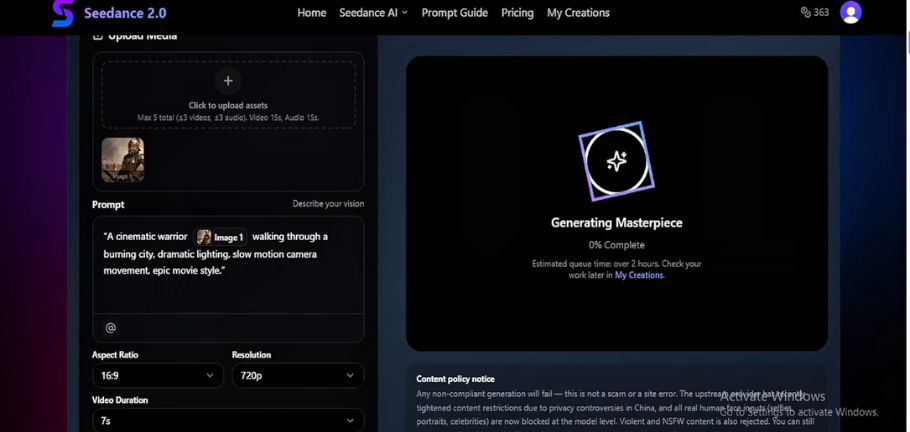
“A cinematic, hyper-realistic 8K video of a futuristic city at night during light rainfall, where neon lights reflect beautifully on wet streets and tall skyscrapers glow with animated holographic advertisements. The scene opens with a slow aerial drone shot moving smoothly above the city skyline, gradually descending toward street level. @Image1 defines a sleek futuristic cyberpunk city with glowing signs and dense urban architecture, while @Image2 sets the appearance of a lone character wearing a modern black trench coat standing near a busy crosswalk. The environment feels alive with subtle motion—hover cars passing between buildings, digital billboards flickering, and pedestrians moving under umbrellas. @Video1 guides a slow dolly-in camera movement toward the main character, focusing on their emotional expression as they look up at the towering skyline. The lighting is moody and cinematic, with deep blues, purples, and neon pink highlights blending across the wet surfaces. @Audio1 adds a deep ambient electronic soundtrack mixed with soft rain sounds, distant city chatter, and faint mechanical hums from flying vehicles. The camera slowly rotates around the character, capturing reflections in puddles and glass buildings, creating a highly immersive and dramatic atmosphere. The final shot slowly zooms out, revealing the vastness of the futuristic city while maintaining a strong emotional and cinematic tone throughout the scene.”
This prompt works well because it is:
- Specific
- Visual
- Detailed
- Focused
Step 3 – Choose Video Style
Seedance allows you to select different visual styles.
Cinematic vs Realistic vs Animated
Cinematic
- Dramatic lighting
- Film-like quality
- Best for storytelling
Realistic
- Looks like real-life footage
- Ideal for product demos
Animated
- Stylized or cartoon visuals
- Great for social media
Which Style Should You Pick?
- YouTube storytelling → Cinematic
- Business videos → Realistic
- TikTok/Reels → Animated
Step 4 – Generate Your Video
How the AI Processes Your Input
When you click “Generate”:
- AI interprets your prompt
- Breaks it into visual elements
- Applies motion and transitions
- Renders frames into video
Expected Time & Output
- Generation time: 1–5 minutes
- Longer or complex prompts may take more time
Output quality depends on:
- Prompt clarity
- Selected style
- Available credits/plan
Step 5 – Preview and Download
Export Settings
After generation:
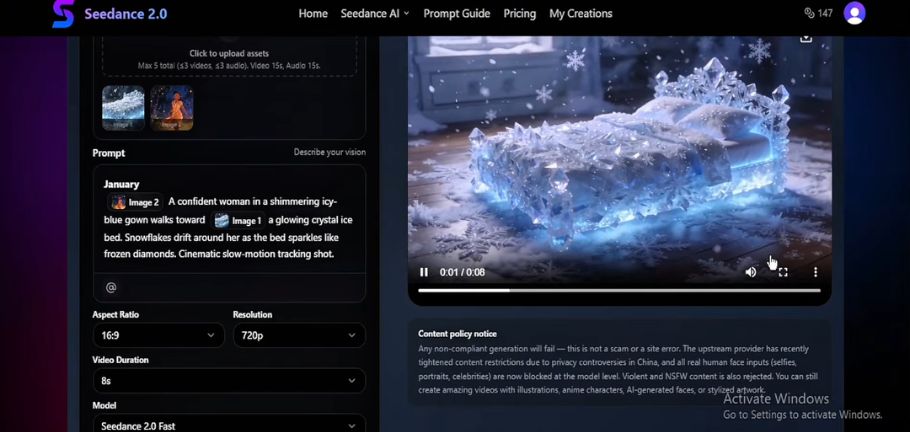
- Preview your video
- Check for errors or unwanted visuals
- Adjust settings (if available)
- Download the final output
Best Format for YouTube & Social Media
- YouTube: MP4, 480p or 720p, 16:9
- Instagram Reels / TikTok: MP4, 9:16 vertical
- Ads: High-resolution MP4 (1080p+)
To get the best results and truly learn how to use Seedance AI, your prompt quality matters the most. A clear and detailed prompt helps the AI understand exactly what you want to create. Instead of writing something vague, you should describe the scene with more detail and clarity.
- Write clear and detailed descriptions instead of vague lines like “a city scene.”
- Describe the environment properly, including weather, lighting, time of day, and mood
- Add motion details such as camera movement (pan, zoom, dolly, slow motion)
- Include audio details like background music, sound effects, or atmosphere
- Use strong descriptive words like “cinematic,” “hyper-realistic,” or “8K quality.”
- Keep your idea focused and avoid mixing too many concepts in one prompt
- Use the @ mention system to control how your uploaded files are used
- Each file gets a label like @Image1, @Video1, or @Audio1
- Assign clear roles to each file so the AI understands their purpose
- Use images for characters or environments
- Use videos for motion and camera style
- Use audio for mood and pacing
- Always mention each file clearly in your prompt
- Test with short videos (4–5 seconds) before creating longer ones
- Build your own library of reference files for faster and more consistent results
- Combine strong prompts with smart use of references for the best output
Many beginners struggle because of small but important mistakes. Avoiding these can instantly improve your results.
- Writing very short prompts that lack detail
- Adding too many instructions in one prompt
- Ignoring the style selection before generating the video
If you want higher-quality output, you need to refine both your prompts and settings. Small improvements can make a big difference.
- Write more detailed and descriptive prompts
- Choose the right resolution and format for your platform
- Match the video style with your content purpose
- Regenerate videos and compare different results
Seedance 2.0 is flexible and can be used for different types of content creation.
- YouTube videos like storytelling, faceless content, and tutorials
- Social media content such as TikTok, Reels, and Shorts
- Ads and marketing videos, including product promotions and branding
Like any tool, Seedance 2.0 has its strengths and limitations.
Pros:
- Beginner-friendly and easy to use
- Fast video generation
- No editing skills required
- High-quality AI visuals
Cons:
- Limited control compared to manual editing
- Requires practice to write good prompts
- Advanced features need a paid plan
How long does it take to create a video?
Seedance 2.0 usually takes around 1 to 5 minutes to create a video, depending on how detailed your prompt is and how complex the scene is. Simpler videos generate faster, while longer or more detailed outputs may take a bit more time to process.

Is Seedance 2.0 free?
Seedance 2.0 offers a free plan that allows users to try basic features with limited credits. However, to access advanced tools, higher quality videos, and more generation limits, users need to upgrade to a paid plan.
Can beginners use it easily?
Yes, beginners can easily use Seedance 2.0 because it is designed with a simple and user-friendly interface. You don’t need any editing or technical skills, just write a prompt, choose settings, and generate your video.
What type of videos can I create?
With Seedance 2.0, you can create a wide variety of videos, including cinematic scenes, animated clips, social media content like TikTok or Instagram Reels, marketing videos, and storytelling-based visuals.
Seedance 2.0 is a powerful AI video creation tool that makes it easy for anyone to produce high-quality videos without needing editing skills or technical knowledge. It saves time by turning simple text prompts into complete videos with visuals, motion, and style. Instead of spending hours on traditional video editing, users can quickly generate content in just a few minutes, making it a great option for fast-paced digital creation.
This tool is especially useful for beginners, content creators, YouTubers, marketers, and small businesses who want to create engaging videos without heavy production work. If you are learning how to use Seedance 2.0, it offers one of the simplest and most accessible ways to enter the world of AI video generation and start producing professional-looking content quickly.
I’m Kashan Chishty, CEO of Concept Beans and a serial entrepreneur with over 25 years of experience in design, user experience, & digital innovation. I’ve successfully founded companies across the USA and Asia, including Dropesy, Affordable Pvt Ltd, and Concept Beans. My core expertise includes AI video generation, UX audits, product design, & strategic digital marketing.


